Register Widget User Guide
This guide explains how to use the Register Widget inside the TEMU System Debugger.
Overview
The Registers panel shows CPU and peripheral register information for the queried debugging context. It displays groups of registers and individual fields in a single hierarchical table that supports scrolling. You can:
-
Browse register names and descriptions
-
Read current values in hex
-
Edit writable registers directly
-
Expand/collapse groups to reveal fields
-
See visual indicators for read-only vs writable items
-
Observe automatic updates when execution state changes
The layout is optimized for keyboard and mouse, with a familiar spreadsheet-style interface.
Opening the Registers Panel
-
Connect to a target or start a debug session.
-
Choose (or click the register icon on the tab bar of the bottom dock).
-
From the component tree, use the context menu to select 'Get Register' for a component that may have registers.
-
The panel will then populate.
If no target is connected or the context has no register information, the panel will not populate anything.
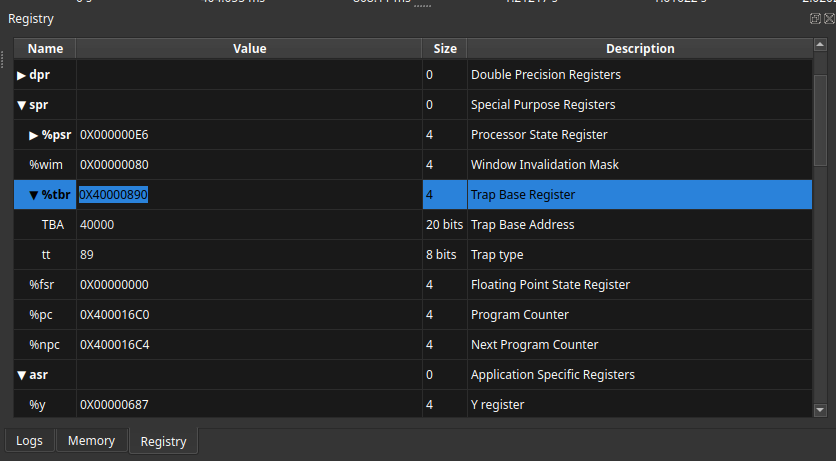
Table Columns
The register view uses four columns:
- Name
-
the register or field name. Parent registers (those with children) are shown in bold and can be expanded or collapsed. Indentation indicates hierarchy level.
- Value
-
the current contents expressed in hexadecimal. Fields under registers update when you expand the parent or when the register value changes.
- Size
-
the size of the register or field (bytes or bits).
- Description
-
human-readable comments describing the purpose or semantics.
Each row is selectable. Clicking anywhere in the name column expands or collapses the item if it has children.
Navigation and Interaction
Hierarchy Management
-
Click the triangular indicator or name in the Name column to expand/collapse registers that group fields or sub-registers.
-
Expanded parents show a downward arrow (▼); collapsed ones show a rightward arrow (▶).
-
Nested registers/fields are indented by four spaces per level to help visually parse the structure.
Value Updates
-
When you expand a register or when the debugger halts or steps, the panel automatically queries the target and updates the Value column.
-
Field values (children with type Field) are computed from the parent register value and displayed next to the parent.
-
If the value cannot be obtained an error text will appear (for example, "Error fetching value").
-
When register values change due to program execution, the panel reflects the new values within a moment.
Color Coding and Visual Cues
-
Read-only registers/fields have a light gray background and darker text to indicate they cannot be edited.
-
Writable values use the normal background so you can recognize editable entries quickly.
-
Fields with all bits cleared appear in dark gray text; fields with all bits set turn orange; intermediate values use a lighter gray. This helps spot status flags and controls at a glance.
-
Top-level items with no parents or children are styled differently: they are bold, larger, and centered across all columns.
Editing Register Values
-
Double-click the Value cell of a register that is writable (not read-only).
-
Type a new hexadecimal number. You may include the
0xprefix or just the digits. -
Press Enter or click outside the cell to commit, or Esc to cancel.
If the field is not writable, an attempt to edit will be rejected and a warning dialog will appear: "Register '<name>' is not writable".
Invalid input (non-hex digits) is automatically reverted to the previous value. Upon successful entry, any child fields are recalculated and the debugger is notified of the new register value. The register will then be read back from the target to confirm the update.
Error Handling
-
If the widget receives malformed data from the backend, a descriptive message such as "Error: Unexpected data format for registers." is shown.
-
Connectivity issues or missing services may prevent values from loading; in that case, individual cells will display an error message.
Tips and Best Practices
-
Expand a register before editing to see how its fields will be affected by a new value.
-
Use the Size and Description columns to verify you are modifying the correct register, especially in CPUs with large register sets.
-
Collapsing a parent hides all its children, which can help reduce clutter in the view while stepping through code.
-
You can navigate the table with arrow keys once a row is selected. Press Tab to move between columns if you prefer keyboard editing.