Project Management & File Explorer
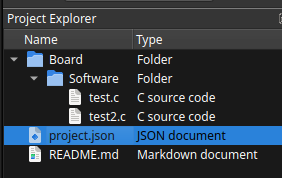
The Project Management & File Explorer panel is the main place to create, organize, and maintain project resources. Use it to manage project structure, files, and mappings between your local workspace (source files) and target paths.
Key Panel Capabilities
-
Create and open projects
-
Browse files and folders in a tree view
-
Perform file and folder operations
-
Configure local-to-target path mappings
Creating Projects
Use this workflow to create a new project:
-
Open the Project Management & File Explorer panel.
-
Right click.
-
Select New Project.
-
Enter project metadata:
-
Project Root Directory
-
Project Name
-
-
Confirm with Create.
File Operations
Use the explorer context menu (right-click) or toolbar actions.
Create a New File
-
Select a target folder.
-
Click New File.
-
Enter file name and extension.
-
Press Enter to create.
Path Mapping
Path Mapping links local project paths to target/runtime paths so files are resolved correctly during debugging.
Why It Matters
-
Ensures source paths match target execution paths.
-
Improves symbol resolution and breakpoint accuracy.
-
Prevents file mismatch during remote operations.
Configure Mapping
-
Open project settings.
-
Navigate to Path Mapping.
-
Add a mapping entry:
-
Local Path (workspace path on Linux, e.g. /home/user/project/src)
-
Target Path (runtime/remote path, e.g. /opt/app/src)
-
-
Save configuration.
-
Validate mapping with a test run or sync action.
| Local Path | Target Path |
|---|---|
|
|
|
|