TEMU CLI Terminal
The debugger includes an interactive TEMU command terminal for running emulator commands without leaving the GUI. The dock is labeled Terminal.
Opening the Terminal
The Terminal dock is placed in the bottom dock area by default and is tabbed with Memory, Registers, and Object Properties.
Inside the dock, the TEMU CLI is the first tab. Serial consoles exported by the emulator appear as further tabs beside it, see Serial Terminals.
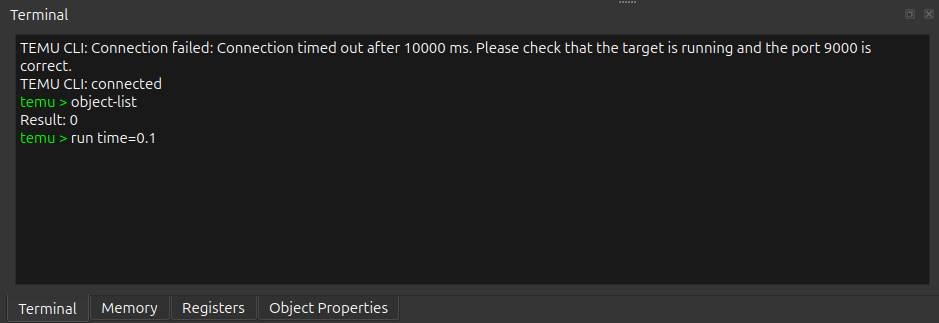
Connection State
The terminal is only interactive when the TEMU service is available.
-
Before a connection is ready, the dock shows service-status messages and input is disabled.
-
After a successful connection, the terminal prints a connected message and shows the prompt
temu >. -
On disconnect or connection failure, the terminal prints the reason and disables further input until the service becomes available again.
Running Commands
Type a command after the prompt and press Enter. The debugger sends the command to the TEMU service, prints whatever the command produced, and then shows a new prompt.
The outcome is reported through the prompt rather than through a success message, so successful output speaks for itself:
-
The prompt turns green when the command succeeded.
-
The prompt turns red when the command reported a failure. A failing result code is printed as
Result: <code>, and a request that could not be executed at all is printed asError: <message>.
The run command, with no time=*, will continue running the software indefinitely
and can be stopped using the command stop.
Emulator Output
The terminal is attached to the emulator’s standard output and standard error
streams, temu.stdout and temu.stderr, from the moment the connection is
established.
Everything the emulator writes to them is shown in this tab, including command
output, info, warning, and error messages, and output produced
asynchronously while the target is running.
Standard output is shown in the terminal’s normal text color and standard error in red. Color and formatting escapes produced by the emulator are rendered.
Output that arrives while you are typing is inserted above the prompt, so the command you are editing is never disturbed.
| The streams mirror the emulator’s output, they do not redirect it. The same text still appears on the terminal where the emulator was started. |
Two consequences are worth remembering:
-
Only output produced after the TCF server was started is available to the debugger. Anything the emulator printed earlier appears on its own terminal only.
-
If bytes cannot be delivered to the debugger, the gap is marked in the output as
[stream lost <n> bytes]rather than being dropped silently.
Emulator output depends on the Streams service being present on the TCF server. Without it the terminal still runs commands, but no emulator output appears in the tab.
Completion and Editing
The terminal supports interactive completion:
-
Typing starts a delayed completion request.
-
Press Tab to request completion immediately.
-
When the completion popup is visible, use the arrow keys to move through the suggestions and press Enter to accept one.
-
Press Esc to close the completion popup.
The widget protects the prompt area, so editing is limited to the current input
line after temu >.
Command History
The terminal keeps a local command history for the current session.
-
Press Up to move to an older command.
-
Press Down to move toward newer commands or back to the unfinished draft you were typing.
This is useful when repeating the same inspection command with only minor changes.
Tips
-
Use the terminal for quick one-off TEMU commands while keeping the graphical views open beside it.
-
Keep the tab visible while the target runs: emulator warnings and errors arrive here as they are produced, without waiting for a command to finish.
-
If you rely on scripted breakpoint actions, see Scripting for the emulator-side scripting model.